canmetry
User guide
Canmetry Community is a browser-based CAN log analyzer for loading raw bus logs and DBC files directly in the browser. The community edition is fully client-side: files are read locally, parsed locally, and decoded locally.
Workflow
Load log → Load DBC → Channel mapping (+ Start) → Graph / Trace / DBC
Typical session:
- File → Load CAN log… — load
BLF,ASC,CSV,LOG, orMF4 - File → Load DBC… — add one or more
.dbcfiles - File → Channel mapping… — assign DBC files to CAN channels, then click Start parsing on the mapping card
- Switch between Graph, Trace, and DBC
You do not need a separate File → Parse signals step after mapping; Start parsing on the card begins decode.
Optional actions:
- File → Parse signals — re-run decode later if needed
- File → Export signals (CSV)…
- File → Save project…
- File → Import project…
Graph
Graph is the decoded signal workspace. It combines a searchable signal list, per-signal properties, grouping, and an interactive chart for time-domain analysis.
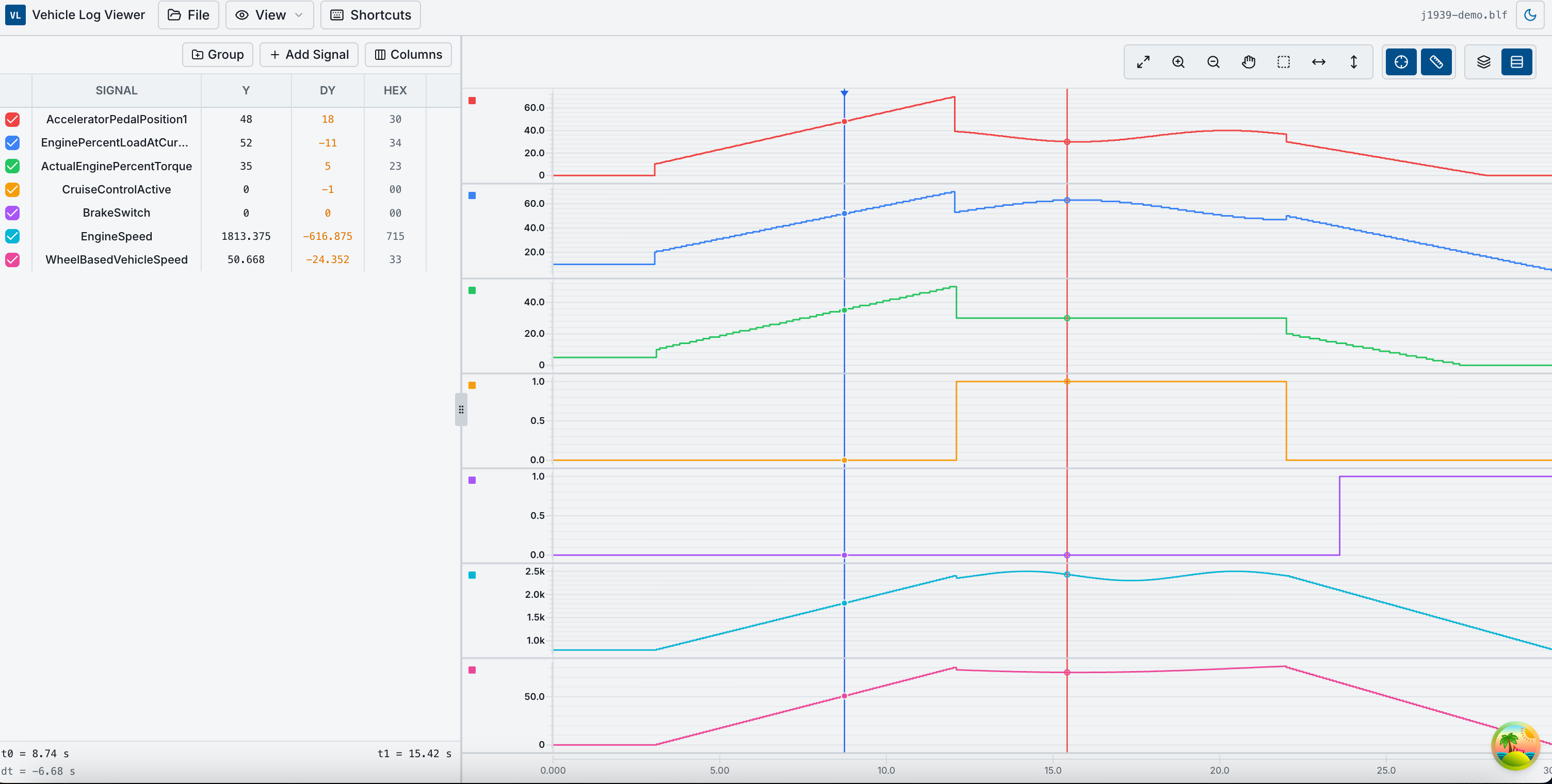
What Graph is for
Use Graph when you want to:
- inspect decoded signal values over time
- compare multiple signals on one chart
- isolate related signals into groups
- inspect exact values at one or two cursor positions
- zoom into one time window and keep that layout in a project file
Layout
| Area | Purpose |
|---|---|
| Left signal table | Current plotted signals, visibility, Y value, ΔY, hex display, remove |
| Group controls | Create groups, switch group view mode, remove groups |
| Add signal action | Open searchable signal picker dialog |
| View options | Show/hide table columns such as message, unit, description |
| Right chart | Overlay or stacked signal rendering |
| Chart toolbar | Zoom mode, cursor mode, reset, shortcuts/help |
Signal catalog and add flow
After parsing, Graph builds a decoded signal catalog from the mapped DBC files and the current log.
You can:
- open the signal picker with Add Signal
- search by signal name, message name, unit, or description
- add one signal or multiple signals incrementally
- rely on the app auto-adding the first decoded signal in a fresh session
Signal properties shown in Graph
For each plotted signal, Graph can surface:
- signal name
- message name
- unit
- description
- current Y value at the main cursor
- delta Y at the diff cursor
- raw/hex view where relevant
- visibility state
- color
Signals also preserve channel context, so the same signal name on different channels remains distinct.
Visibility, color, and row actions
Plotted signals are not forced to stay visible all the time. For each signal you can:
- toggle visibility without removing it from the workspace
- remove it from the plotted list
- assign a custom color
- reset a custom color back to the default palette
The context menu is designed so you can refine the chart without rebuilding the plotted set from scratch.
Grouping
Graph supports lightweight signal grouping to keep large sessions readable.
You can:
- enter group pick mode
- select two or more plotted signals
- create a named group
- switch a group between:
overlaystacked
- remove a group while keeping the member signals available
Grouping is useful for:
- same-ECU related signals
- compare-left / compare-right pairs
- speed + torque + pedal bundles
- digital status signals grouped away from analog signals
Chart modes
Graph supports two viewing strategies:
- Overlay — multiple series share one plot region
- Stacked — each series/group gets its own vertical band
Overlay is better for direct comparison. Stacked is better when units and ranges differ heavily.
Cursor system
Graph has two cursor concepts:
- Main cursor
- follows hover / active interaction
- shows the current value per visible series
- Diff cursor
- placed explicitly for comparison
- computes delta time and delta value
This makes it possible to inspect:
- exact RPM at one time point
- delta speed over one acceleration segment
- latency between two state transitions
Zoom and navigation
Graph is designed for inspection, not just display.
Available interactions include:
- zoom in
- zoom out
- reset zoom
- pan view
- box zoom
- X-only zoom
- Y-only zoom
- cursor-oriented zoom
The visible time window and Y ranges are persisted into project files.
Signal rendering details
The chart uses a custom renderer instead of a generic chart preset so it can support:
- stepped signal paths
- per-series Y ranges
- stacked multi-panel layout
- enum/value-label aware axes
- stable cursor reads and diff calculations
This is especially useful for mixed datasets where some signals are continuous values and others are discrete state signals.
Keyboard shortcuts
Graph includes a shortcuts/help entry from the toolbar. The shortcuts are aimed at high-frequency workflows such as:
- open picker
- open help
- navigate chart tools faster
Best use cases
Graph is the best view for:
- throttle / speed / RPM relationships
- state transitions over time
- compare two points on one drive event
- building saved workspaces for repeated analysis
Trace
Trace is the raw frame inspection view. It keeps the original CAN frames visible while layering on search, filtering, decoded message names, and row-level signal decode.
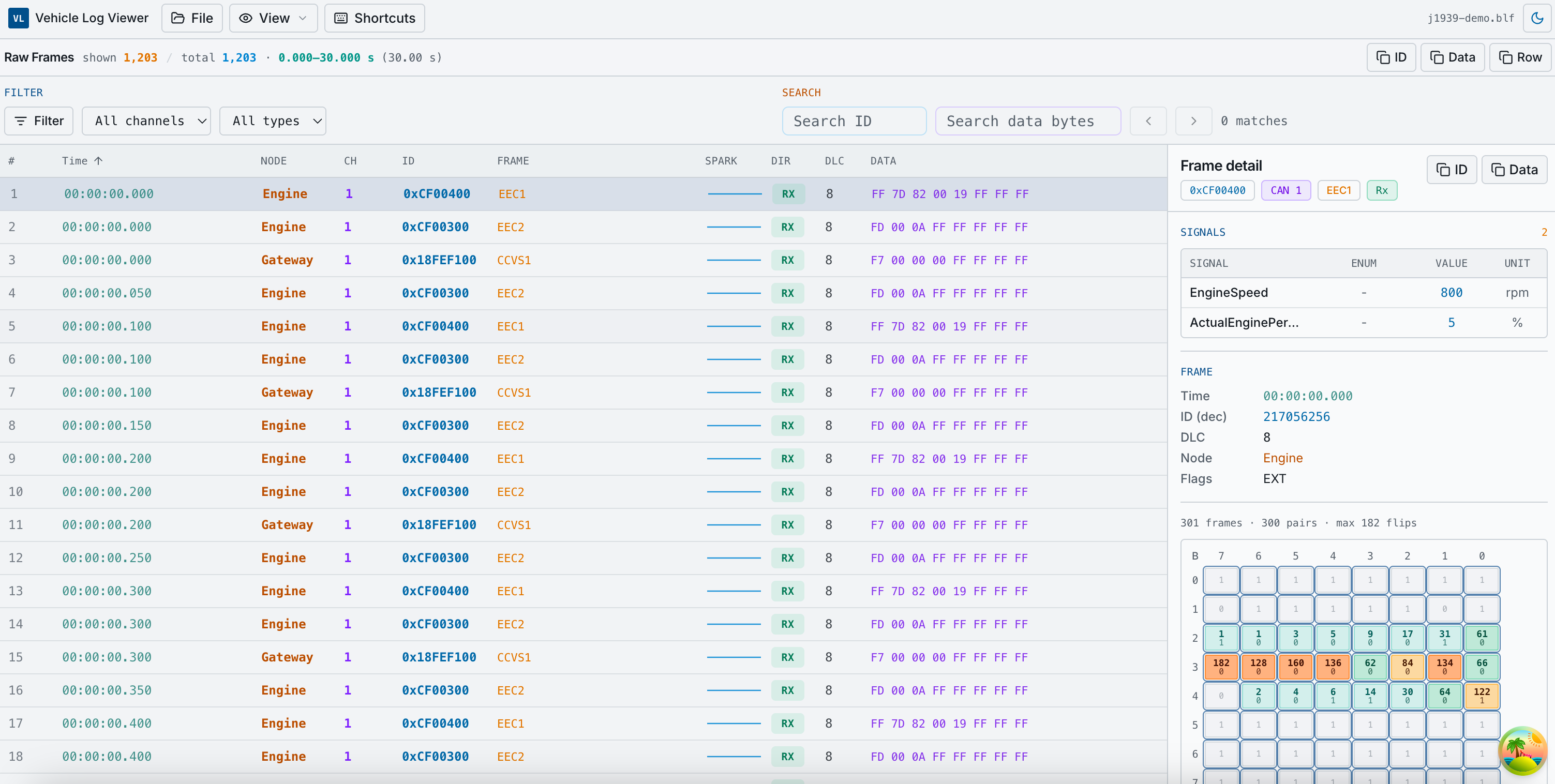
What Trace is for
Use Trace when you want to:
- inspect original traffic rather than only decoded signals
- find one arbitration ID quickly
- verify payload bytes against a DBC definition
- compare repeated frames of the same message
- inspect how bits change over time
Layout
| Area | Purpose |
|---|---|
| Summary bar | Shown frame count, total frame count, time span |
| Copy actions | Copy selected row ID, data bytes, or a tab-separated row |
| Filter controls | Narrow by ID, bytes, channel, type, time window |
| Search controls | Search ID / data and jump through matches |
| Frame table | Raw frame rows with names, channel, type, DLC, payload |
| Detail panel | Selected row metadata, decoded signals, bit activity |
Frame table
The main table includes:
- row number
- relative time
- node name (when DBC mapping resolves one)
- channel
- arbitration ID
- decoded frame/message name
- message sparkline/activity hint
- direction
- DLC
- data bytes
Trace keeps rows even when no DBC matches, so you can still inspect unidentified traffic.
Filtering
Trace supports a filter model tuned for CAN log work:
- ID query
- channel
- frame type
CANCAN FDERR
- data bytes query
- time from / time to in seconds
Filter state is applied on top of the raw extracted frame list.
Search and match navigation
Search is separate from filtering.
You can:
- search by ID text
- search by byte pattern
- jump to previous/next match
- keep the filtered context while moving among matches
This makes Trace useful for spot checks without losing the larger filtered view.
Sorting and row selection
Trace can toggle time ordering and keeps one selected row active.
Selecting a row updates:
- decoded signal list for that frame
- metadata panel
- same-message frame slice used by the bit activity view
Detail panel
The selected-frame detail panel is where Trace becomes decode-aware.
It shows:
- message name
- arbitration ID
- channel
- timestamp
- frame type
- data bytes
- decoded signals for that specific row
If a row resolves to a DBC message, each decoded signal value is displayed beside the raw row information.
Copy helpers
Trace includes direct copy buttons for:
- arbitration ID
- data bytes
- full row summary
This is useful for:
- bug reports
- engineering notes
- pasting into docs or spreadsheets
- comparing with external tools
Sparkline overview
Trace builds per-message sparklines / compact activity summaries so repeated traffic is easier to scan visually.
These are especially useful when the table contains many repeated cyclic messages.
Bit activity heatmap
For the currently selected message ID, Trace can compute a per-bit activity summary from repeated frames.
The heatmap helps answer questions like:
- which bits are changing often?
- which bytes are mostly static?
- is this payload carrying counters, state flags, or analog values?
Requirements:
- at least two frames for the same arbitration ID
- same selected message scope
Best use cases
Trace is the best view for:
- reverse engineering
- payload validation
- frame-level debugging
- checking whether DBC decode is plausible
DBC
DBC is the database inspection view. It lets you browse message definitions, signal properties, nodes, network metadata, value tables, and attributes even before parsing a log.
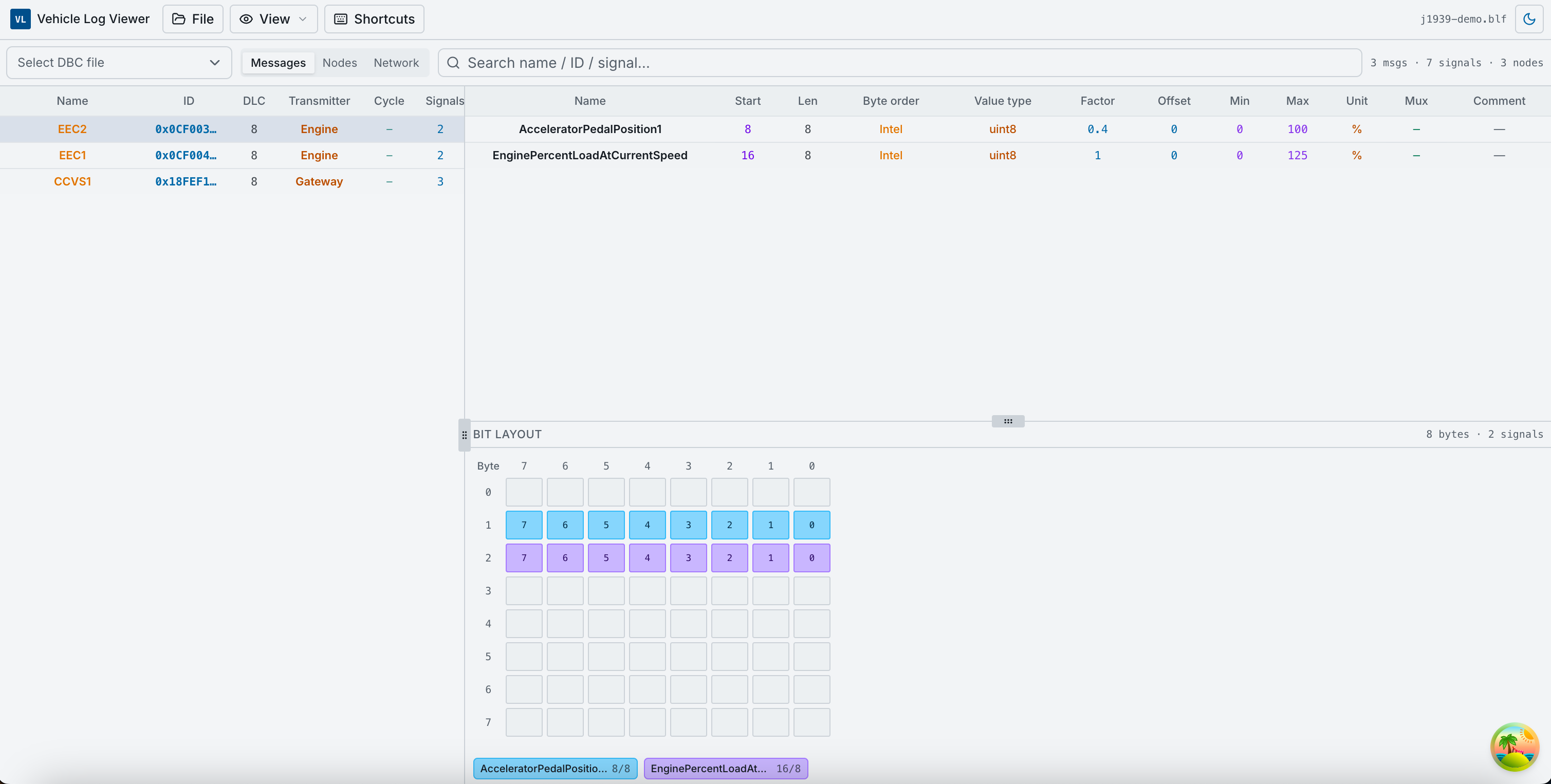
What DBC is for
Use DBC when you want to:
- inspect a loaded DBC file on its own
- find where a signal lives
- verify start bit / length / byte order
- inspect comments, attributes, and enums
- browse nodes and network-level metadata
Layout
| Area | Purpose |
|---|---|
| File selector | Switch between loaded DBC files |
| Scope selector | Messages, Nodes, Network |
| Search field | Filter by name, ID, unit, comment, description |
| Message list | DBC message overview |
| Signal table | Signals in the selected message |
| Bit matrix | Bit/byte layout visualization |
| Detail side panel | Selected signal details, value table, attributes |
Message scope
The default DBC mode is Messages.
It shows:
- message name
- hexadecimal / numeric ID matching
- DLC
- transmitter node
- cycle time when available
- signal count
- comments
Selecting a message updates:
- signal table
- bit matrix
- signal detail side panel
Signal table
For the active message, the signal table exposes:
- signal name
- start bit
- length
- byte order
- value type
- factor
- offset
- min / max
- unit
- multiplexing info
- receivers
- comments
This is the fastest view for verifying whether a payload definition looks correct.
Bit matrix
The bit matrix is a visual representation of the selected message layout.
It is useful for:
- seeing where each signal sits in the payload
- understanding Motorola vs Intel placement
- spotting overlap mistakes
- teaching / documenting signal packing
It follows a Vector/CANdb++-style bit orientation so CAN engineers can read it quickly.
Signal detail panel
When you click a signal, the side panel shows a fuller property sheet:
- name
- start bit
- length
- byte order
- signed/unsigned / value type
- factor
- offset
- min
- max
- unit
- multiplex selector/value
- receivers
- comments
- value table / choices
- signal attributes
Nodes scope
The Nodes tab provides a node-centric view of the database:
- node name
- transmit message count
- receive signal count
- comments
- node attributes
This is useful when you want to understand the DBC by ECU / network participant rather than by message.
Network scope
The Network tab exposes global DBC metadata such as:
- version
- bus speed (when available)
- DBC summary counts
- global attributes
- global value tables
- top-level comments
Search behavior
Search is scope-aware:
- in
Messages, it checks message names, IDs, transmitter names, descriptions, and signal content - in
Nodes, it checks node names and descriptions - in
Network, it mainly helps narrow the currently loaded catalog context
Best use cases
DBC is the best view for:
- DBC review
- reverse-engineering support
- checking bit layout before decode
- understanding enum/value tables
Local deployment and development
Requirements
- Node.js 20+ recommended
pnpm
Start locally
pnpm install
cp .env.example .env.development
pnpm dev
Then open the local Vite URL shown in the terminal.
Local production-style preview
pnpm build
pnpm preview
GitHub Pages static build
VITE_BASE_PATH=/your-repo-name/ pnpm build:pages
Output is written to .output/public.
Environment variables
| Variable | Purpose |
|---|---|
VITE_APP_URL |
Public app URL |
VITE_APP_NAME |
App title / branding |
VITE_APP_DESCRIPTION |
App description |
VITE_COMMERCIAL_URL |
Optional link to hosted SaaS / Pro edition |
VITE_BASE_PATH |
Router / asset base path for subpath deployments |
Supported formats
| Format | Extension | Notes |
|---|---|---|
| Vector BLF | .blf |
CAN / CAN FD log containers |
| Vector ASC | .asc, .log |
CANalyzer/CANoe-style ASCII |
| CSV | .csv |
python-can export or Time/ID/Data style tables |
| ASAM MDF4 | .mf4 |
CAN bus logging groups |
| DBC | .dbc |
Signal decode / DBC inspection |
Parsers live under src/lib/can/ and are original browser-side implementations.
Project files
Workspace state can be exported as .blfproject.json.
It stores:
- current viewer tab
- added and visible signals
- groups
- channel mapping
- zoom mode and view window
- Y ranges
- cursor state
- referenced log and DBC filenames
It does not embed the original log or DBC file contents.
To restore a project:
- import the project file
- reload the referenced log and DBC files
- open Channel Mapping and click Start parsing again (or File → Parse signals)
Privacy
Community edition parsing stays on your machine. No server upload is required for decode or charting.
Static deployment via GitHub Pages or any CDN still serves a browser-side app. If you later add a commercial link, VITE_COMMERCIAL_URL only controls the UI link target and does not change the local parsing model.
See also
- README — repository overview and setup
- architecture.md — implementation architecture
- THIRD_PARTY_NOTICES.md — dependency licenses
- LICENSE — MIT